Deactivate a Mac
Release a device from the app or your account and understand what happens on its next check.
On this page (5 sections)
Review the Mac before deactivating
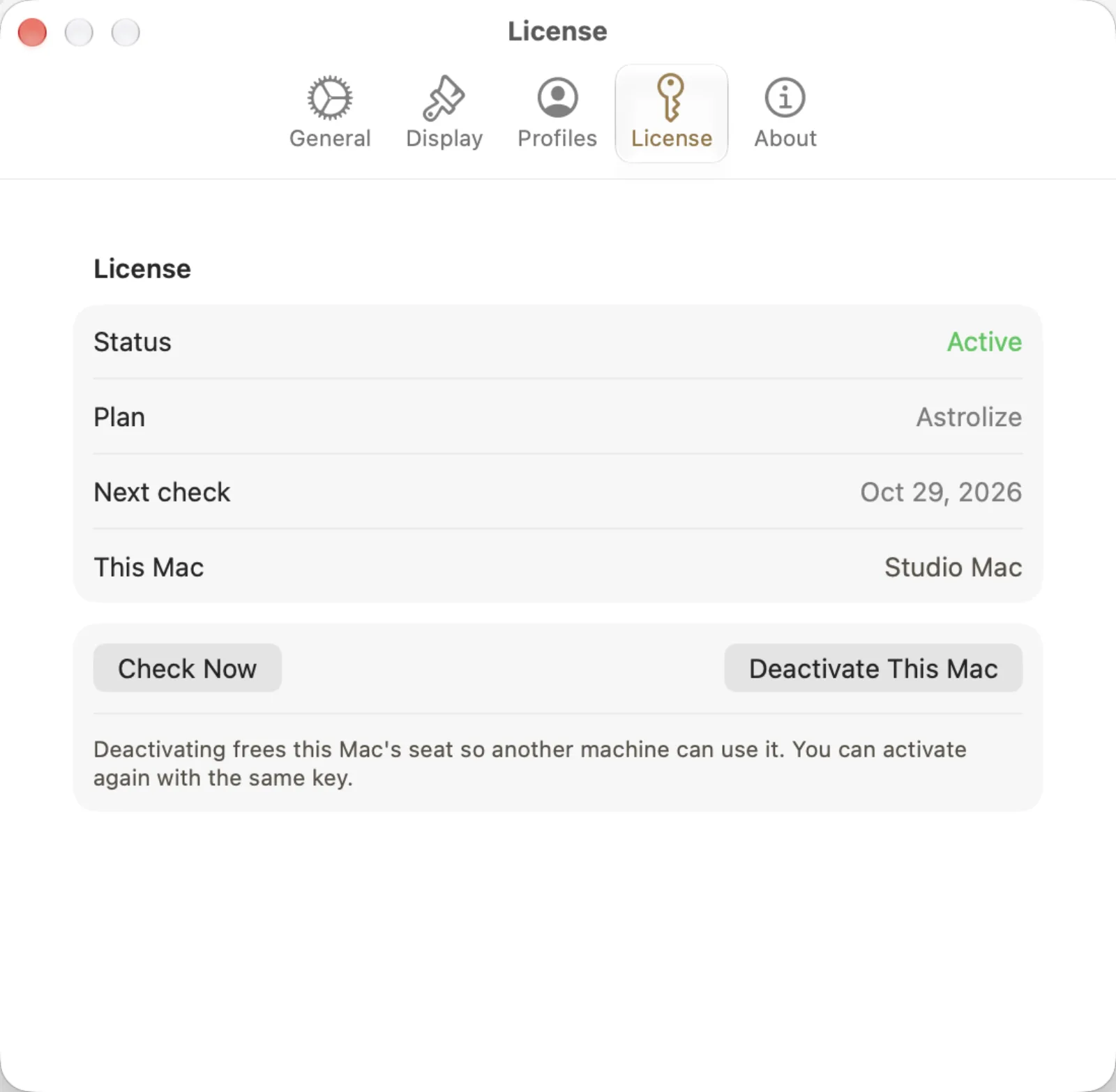
In Astrolize > Settings > License, check the active status and This Mac entry before choosing Deactivate This Mac. The screenshot is a fictional guide state associated with ASTRO-GUIDE-SAMPL-EONLY-NOUSE, a nonworking sample key. Real keys arrive in the purchase email. This local control is different from Release device on the website and from Check Now in the same tab.
Confirm local deactivation
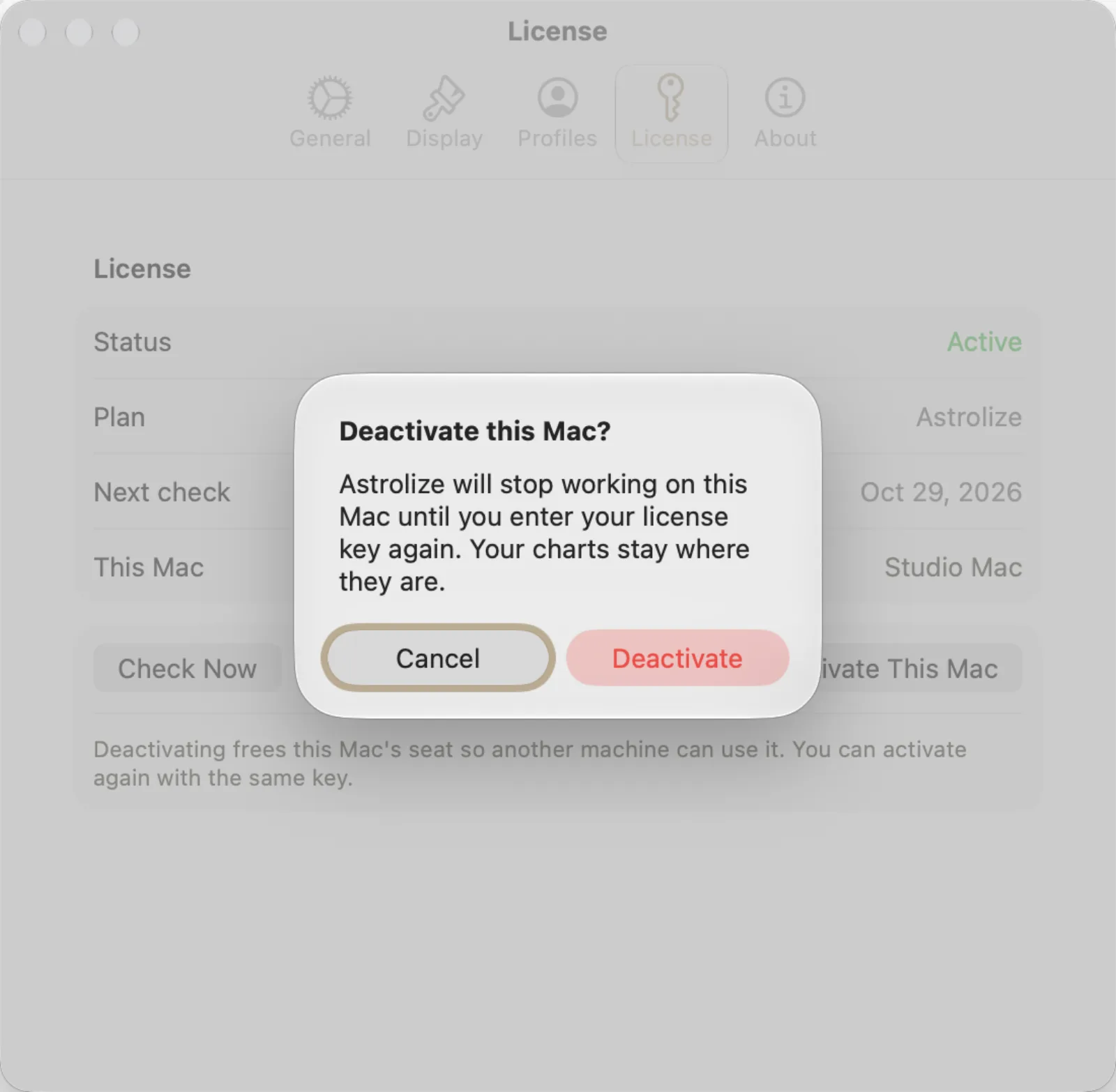
The app asks "Deactivate this Mac?" and explains: "Astrolize will stop working on this Mac until you enter your license key again. Your charts stay where they are." Choose Cancel to keep this installation active, or Deactivate to proceed deliberately. Cancel is the default. This confirmation belongs to the Mac app; the website release action below does not have a confirmation step.
Prefer deactivation on the old Mac
If you still have the Mac, open Astrolize Settings, choose License, then Deactivate This Mac. This is the direct channel's control; an App Store copy has no direct License tab.
Release a seat from the website
Sign in to Your account with the direct purchase address.
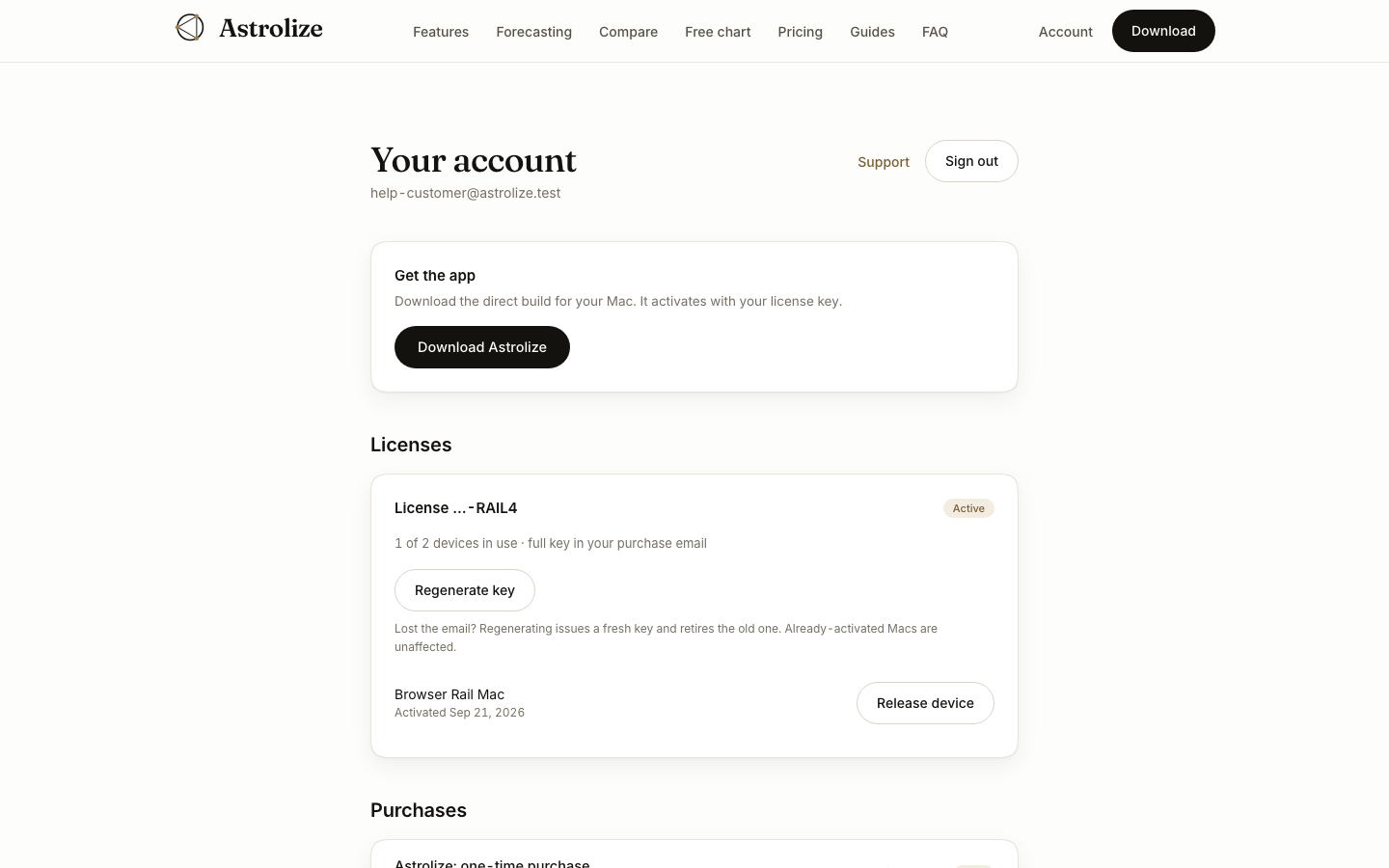
Under Licenses, identify the device by its name and activation date.
Choose Release device beside the intended Mac. This action sends the release immediately; there is no confirmation step.
Understand the next check
An account seat release does not instantly erase a cached entitlement on an offline Mac. The change takes effect through licensing checks. A Mac that still holds the key can reclaim a free seat, so web release is not a remote wipe or a guarantee that the old installation stays inactive.