Keyboard shortcuts and accessibility
Use implemented keyboard navigation and accessibility affordances with known limitations.
On this page (3 sections)
The analysis picker offers a keyboard route to named views without scrolling through the navigator. Use Iris Vale's open chart for this example. Shortcuts operate in the context of the focused app and control, so confirm that Astrolize is active before repeating a key combination. This guide lists the shortcuts the app provides; it does not claim complete keyboard or VoiceOver coverage.
Jump directly to Dasas

Command-K opens the Jump to analysis view... picker. The animation types Dasas and uses Return to open the highlighted result. This changes the analysis view for the selected chart; it does not create a new person or alter Iris's birth record. If you only want to inspect the picker, Cancel or Escape closes it without opening a result.
Open Iris Vale, then press Command-K.
Type Dasas to filter analysis views by name.
Press Return to open the highlighted result, or Escape to cancel.
Read the filtered result and its group
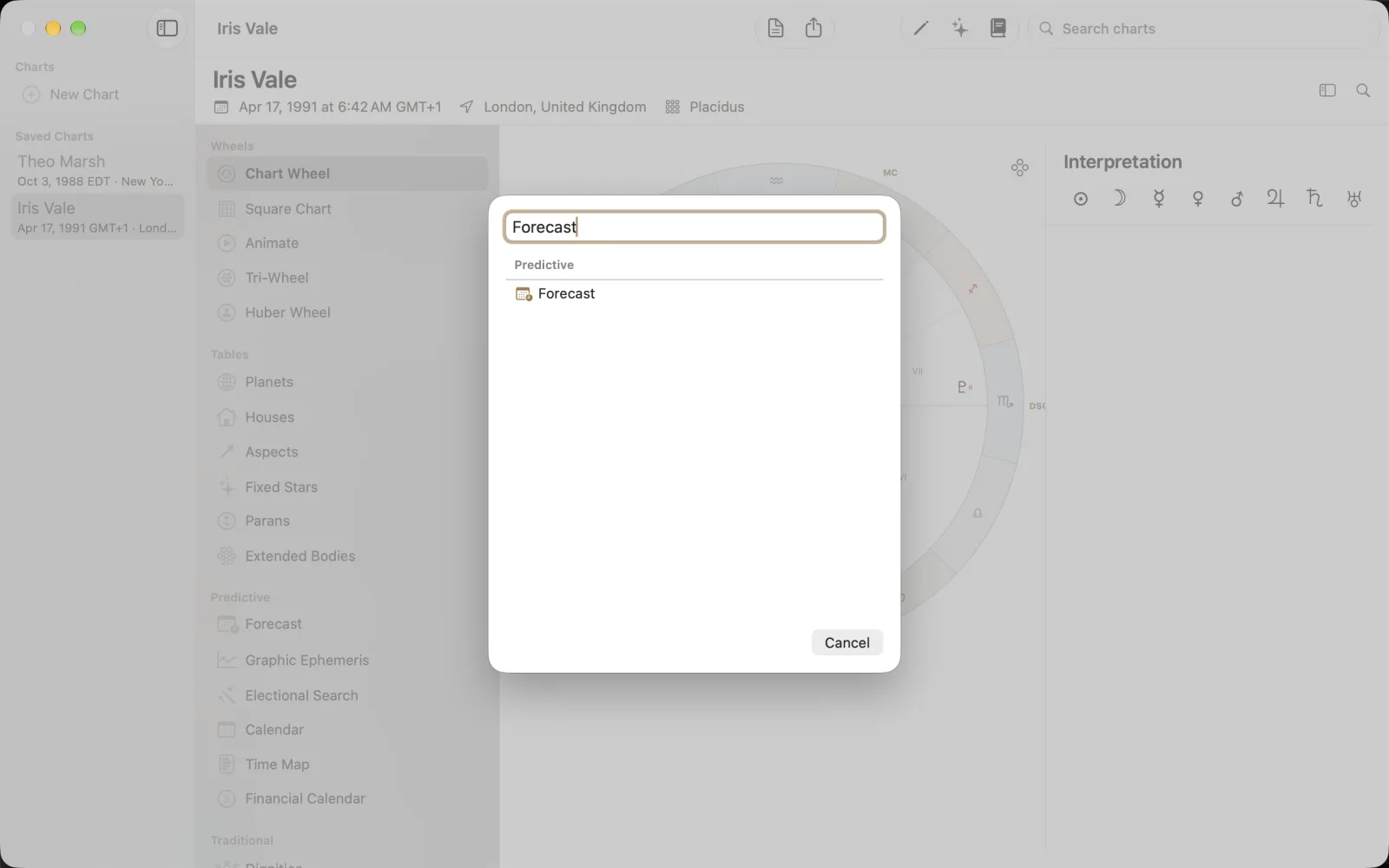
The still uses Forecast and shows it under Predictive. The group label helps distinguish the destination from a chart creation type. Use the name shown by the app rather than guessing a feature keyword. The Cancel button remains available while the search is filtered. A picker result is an analysis destination, not a search across stored birth records.