Page designer, print and PDF
Arrange supported page elements and use the implemented print and PDF actions.
On this page (2 sections)
Page Designer arranges chart information for a page rather than changing a calculation. Open Iris Vale's saved chart, check the London birth details, then choose Page Designer in Tools or through Command-K. The pictured page combines a chart header, wheel and two tables so the visual chart can be read alongside its numeric positions.
Build and review a four-object page
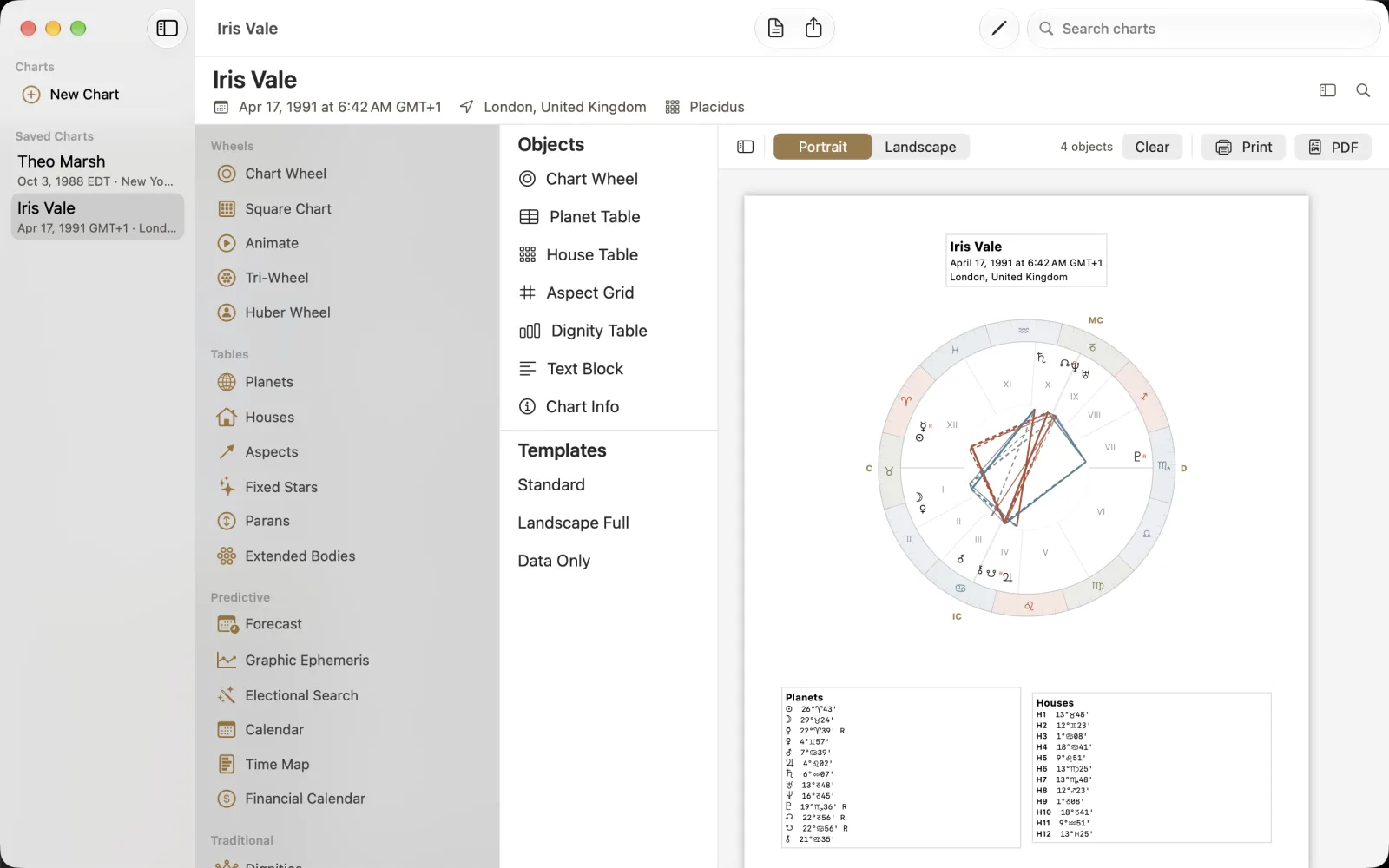
The Objects palette offers Chart Wheel, Planet Table, House Table, Aspect Grid, Dignity Table, Text Block and Chart Info. Templates lists Standard, Landscape Full and Data Only. The top bar has Portrait and Landscape, an object count, Clear, Print and PDF. In this example the count is 4 objects: the chart information, wheel, Planets table and Houses table shown in the preview. The object named Aspect Grid is a page element; do not confuse it with the separate Aspects navigator list.
Select Iris Vale and open Page Designer.
Start with a built-in template or arrange the supported objects, then select Portrait or Landscape.
Check the page preview, object count, chart name and table labels before choosing Print or PDF.