Settings and customization
Change the settings that currently affect calculations and display and manage supported profiles.
On this page (5 sections)
Settings separates calculation defaults, display choices and saved preferences. Use Iris Vale's chart as a reference while reviewing them, but do not assume a changed default rewrites a saved birth record. Open Astrolize > Settings, or press Command-comma. The tabs are General, Display, Profiles, License and About; License appears only in the direct build.
Check calculation defaults
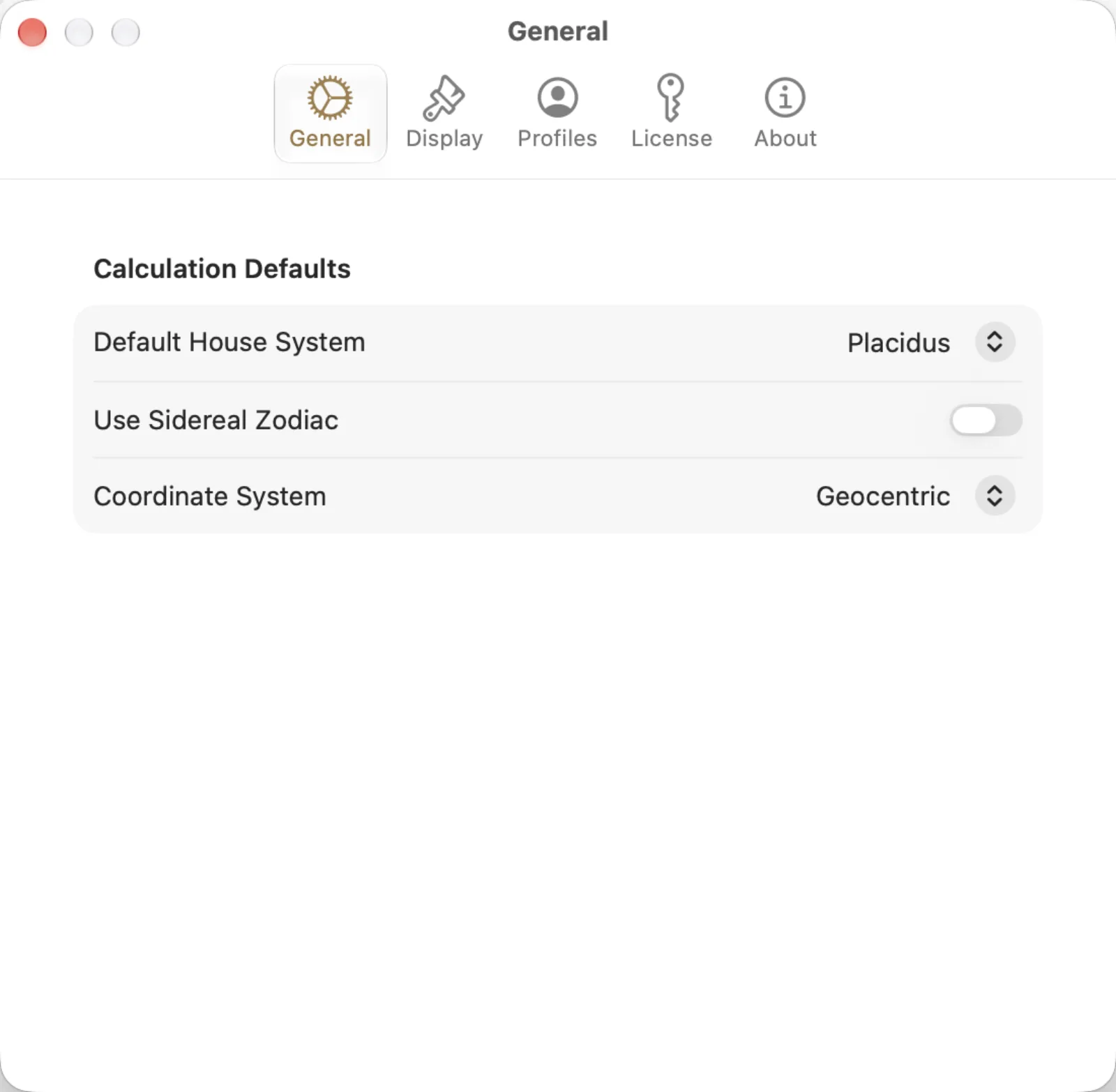
General shows Calculation Defaults: Default House System is Placidus, Use Sidereal Zodiac is off and Coordinate System is Geocentric. These match the starting choices in Iris's natal example. Check the chart itself when comparing results instead of relying solely on the defaults shown here.
Open Settings and choose General.
Review Default House System, Use Sidereal Zodiac and Coordinate System.
Return to the chart and verify its calculation choices before using it for a comparison.
Separate display from calculation choices
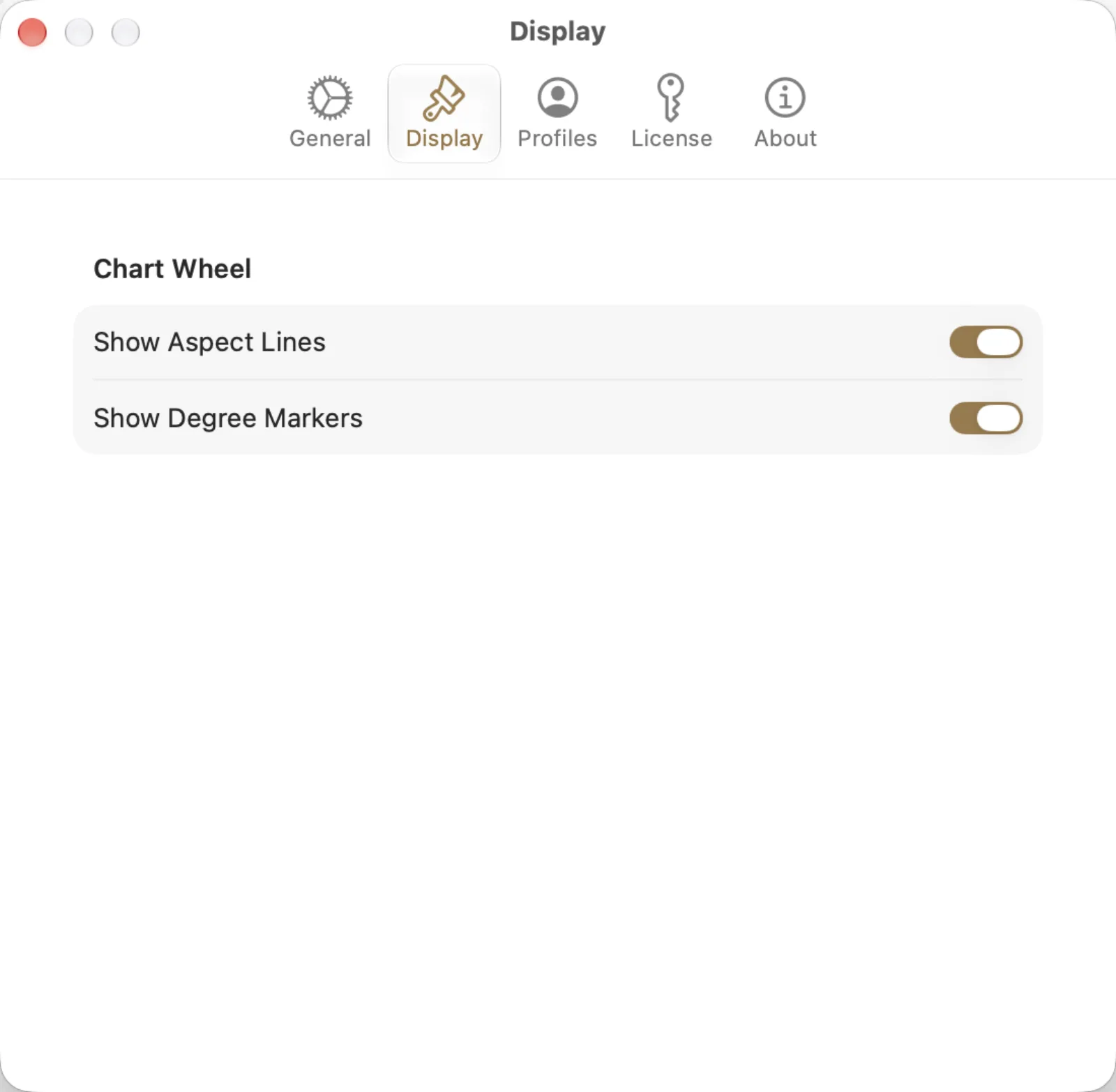
Display has Show Aspect Lines and Show Degree Markers under Chart Wheel, both on in the capture. These controls concern what is drawn. A hidden line should not be taken as evidence that an aspect disappeared from the calculation.
Save or transfer supported preferences
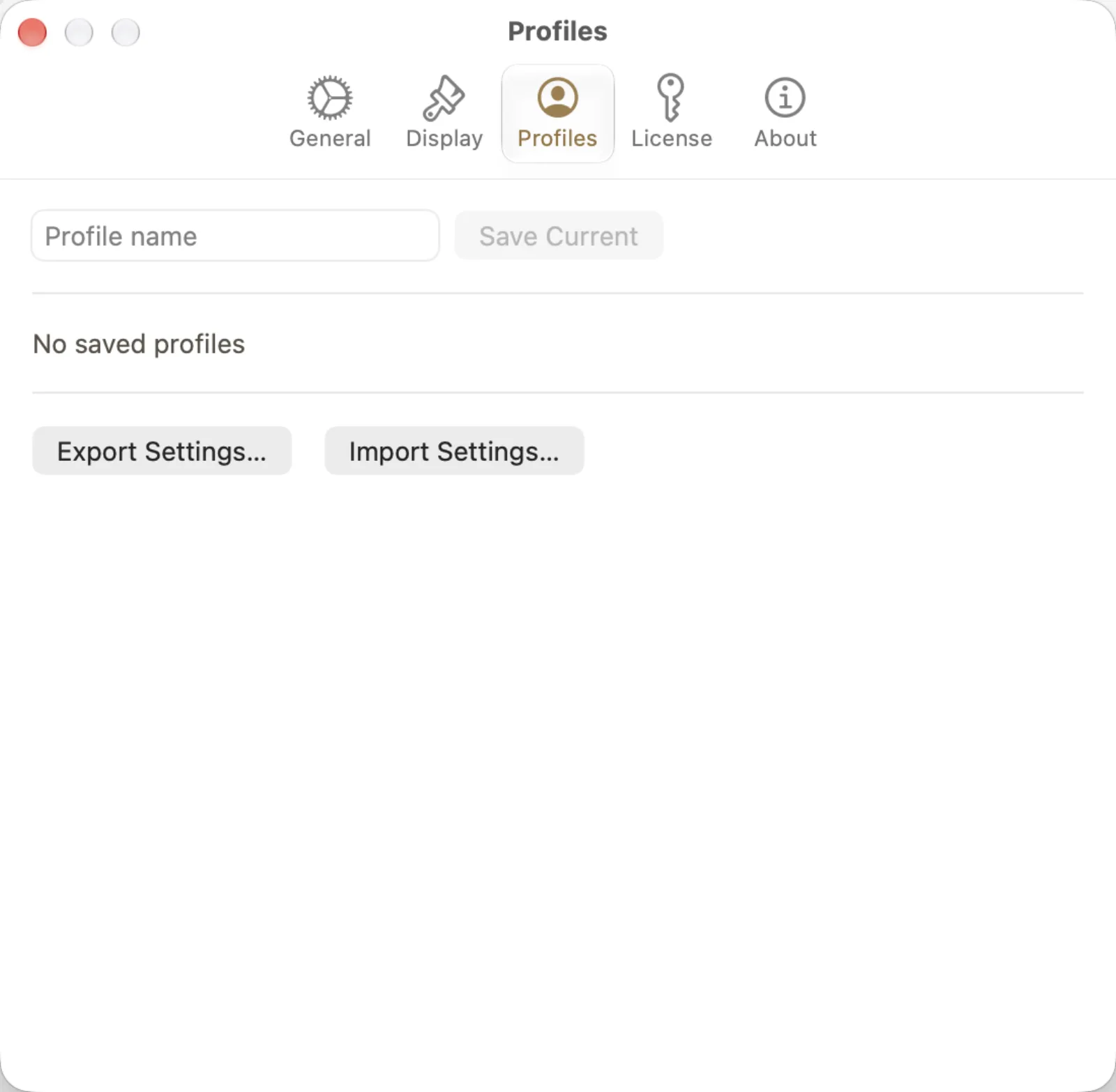
Profiles has Profile name and Save Current. Save Current is disabled until a name is entered; this capture says No saved profiles. Enter a meaningful name before saving. Export Settings... and Import Settings... handle a separate settings file, not the chart library. Preserve the settings you need before importing another file, and check calculation choices afterward.
Identify the installed build
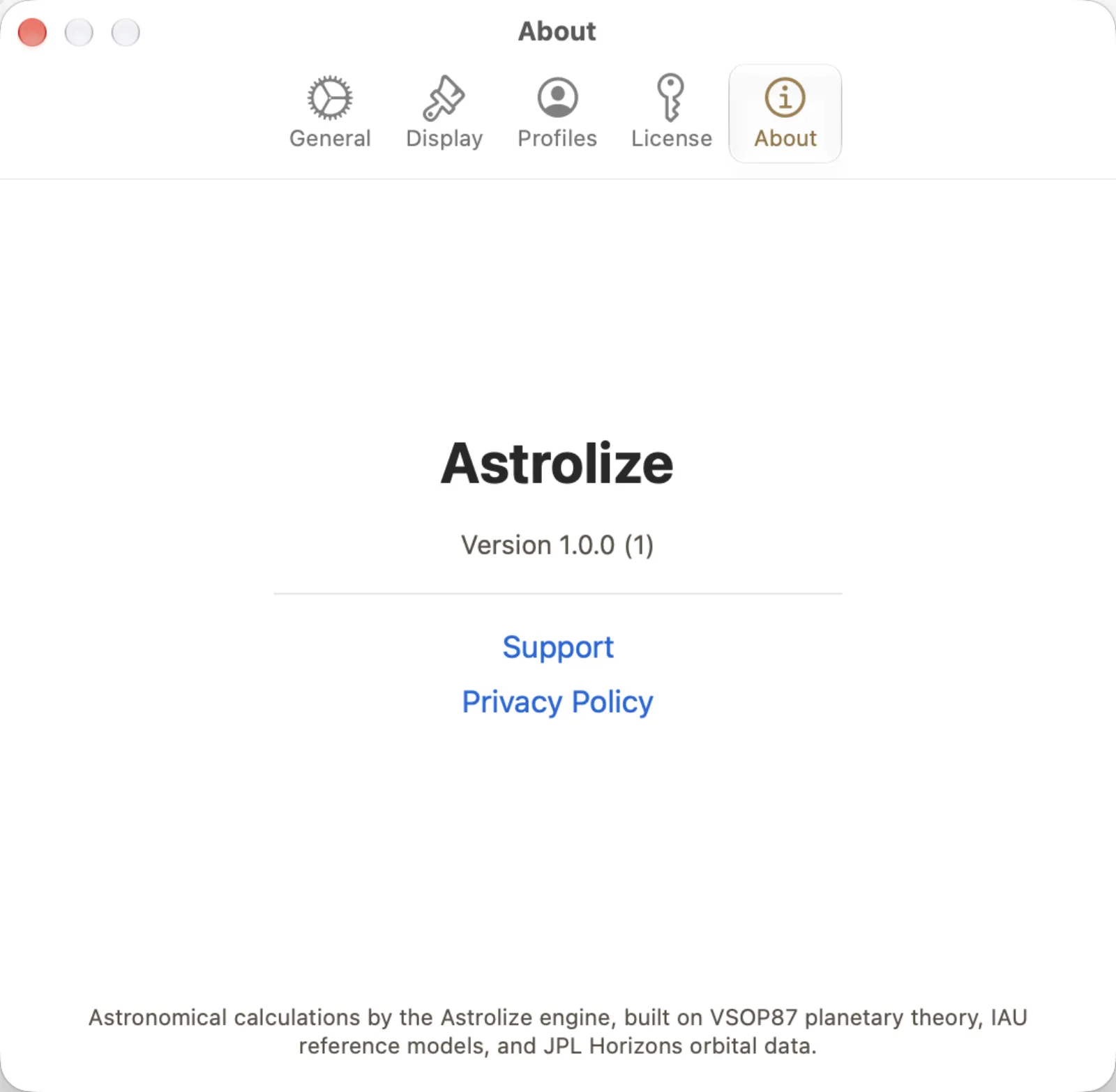
About shows Version 1.0.0 (1) in the example, plus Support and Privacy Policy. Use the version actually displayed by your own installation in a support request; the screenshot is not a promise that this remains the latest build. There is no need to include a private chart record just to identify the version.