Regenerate your license key
Replace a lost or exposed key while keeping already activated Macs working.
On this page (3 sections)
Decide whether a new key is needed
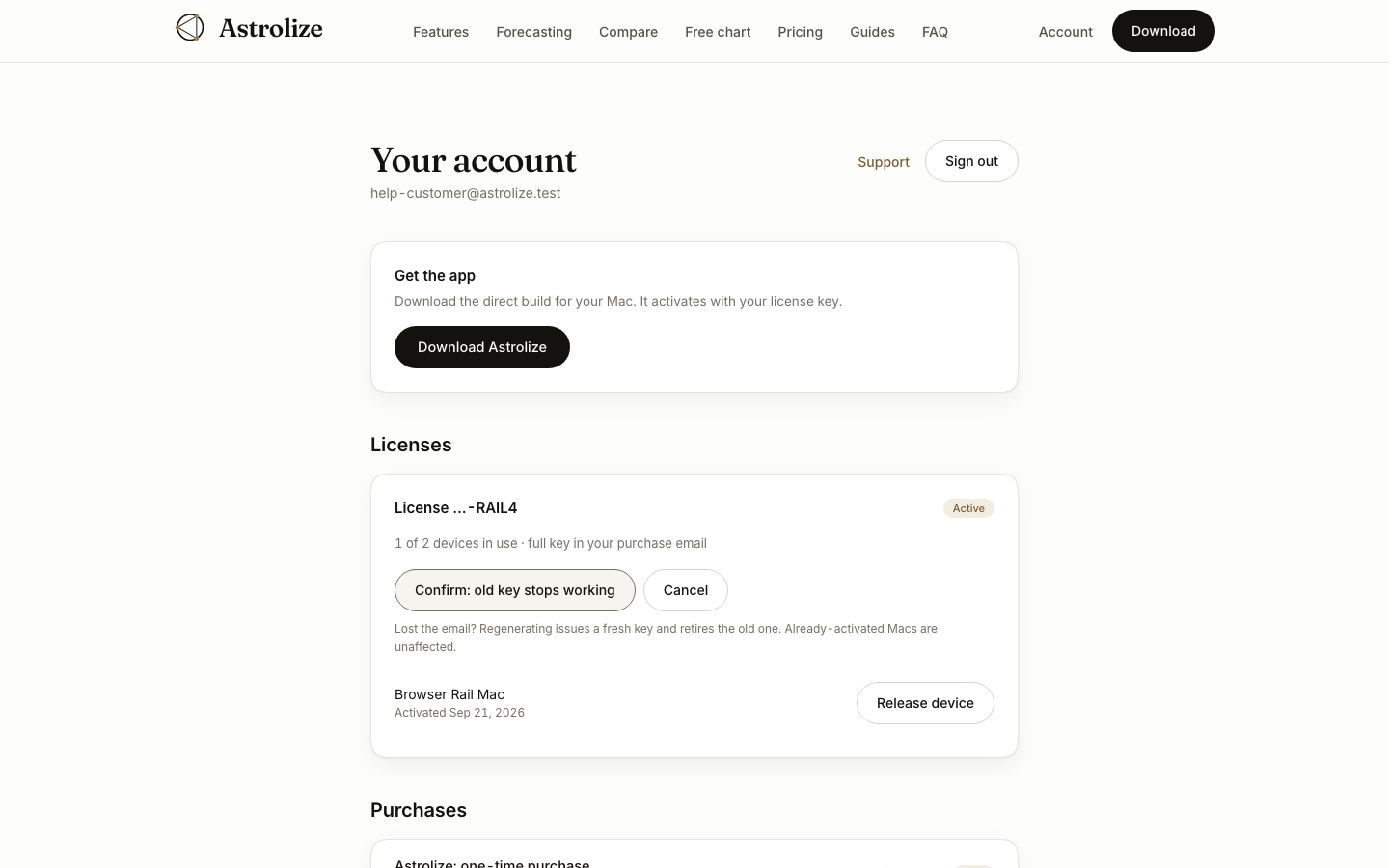
Use regeneration when the direct purchase email is lost or the key may have been exposed. Start by signing in with the purchase email and checking the license hint so you select the correct license.
Replace the key
Open Your account and locate the active license under Licenses.
Choose Regenerate key and read Confirm: old key stops working before confirming.
Use Copy key on the one-time replacement display and store it privately. Check the purchase inbox if the page confirms it was also emailed.
Use the replacement going forward
Regeneration retires the old key for new activations. Already activated Macs are unaffected, so there is no need to deactivate every device just to replace the email copy. Use the newest key when setting up another Mac.
If no active license appears, check the signed-in address and purchase channel first.