Update Astrolize
Follow the update route for your purchase channel and keep a backup before updating.
On this page (3 sections)
Back up before updating
Keep independent chart exports before replacing an installation. Record the current Astrolize version so you can describe a problem if the new version behaves differently. Updating does not replace a backup plan.
Follow the original channel
Purchase channel | Update route |
|---|---|
Mac App Store | Use Apple's App Store update process |
Direct website purchase | Download the new build from Your account |
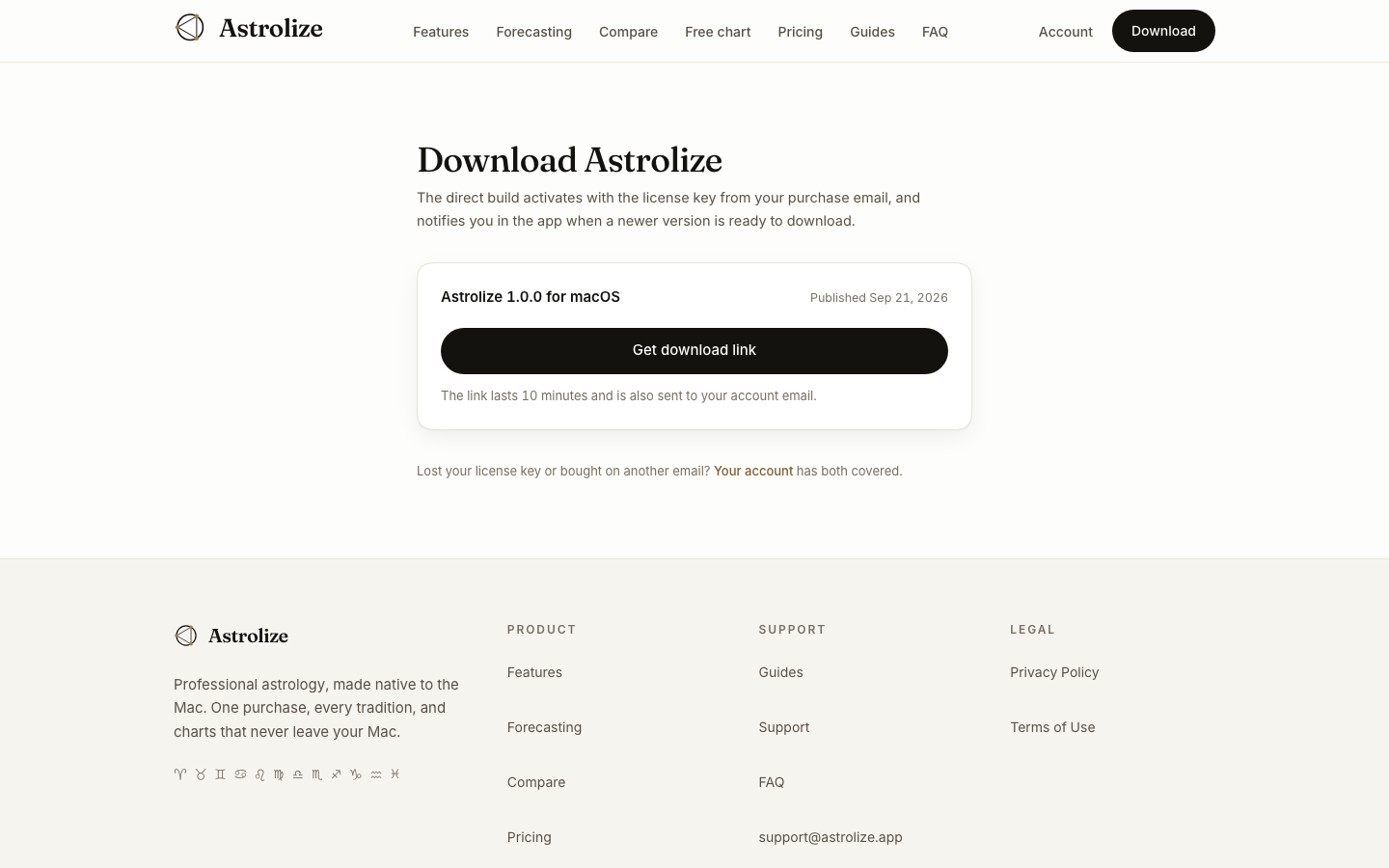
For a direct build, sign in to Your account and choose Download Astrolize under Get the app. Check the available version and request a fresh link. Download the new .dmg, quit the installed app and copy Astrolize.app to Applications to replace the older copy.
Read availability honestly
Check for Updates in the direct app is a notifier that offers the download page when a newer build is available, not an automatic installer. App Store copies do not use this direct check. If no build is published on the download page, repeating the check cannot create one.
After replacing the direct copy, reopen it from Applications and check the version in Settings, About. Keep your original chart exports until you have checked your records. Do not bypass a macOS warning to force an update.